 Guides
How to Compress a PDF Without Losing Quality
By Muhammad Nadeem · Blog #29
📖 6 min read · 1,180 words
At 11:42 a.m., Aisha was ready to send an important client proposal.
The document looked professional. It contained product images, pricing tables, technical details and signed approval pages.
There was only one problem:
The PDF was too large to send.
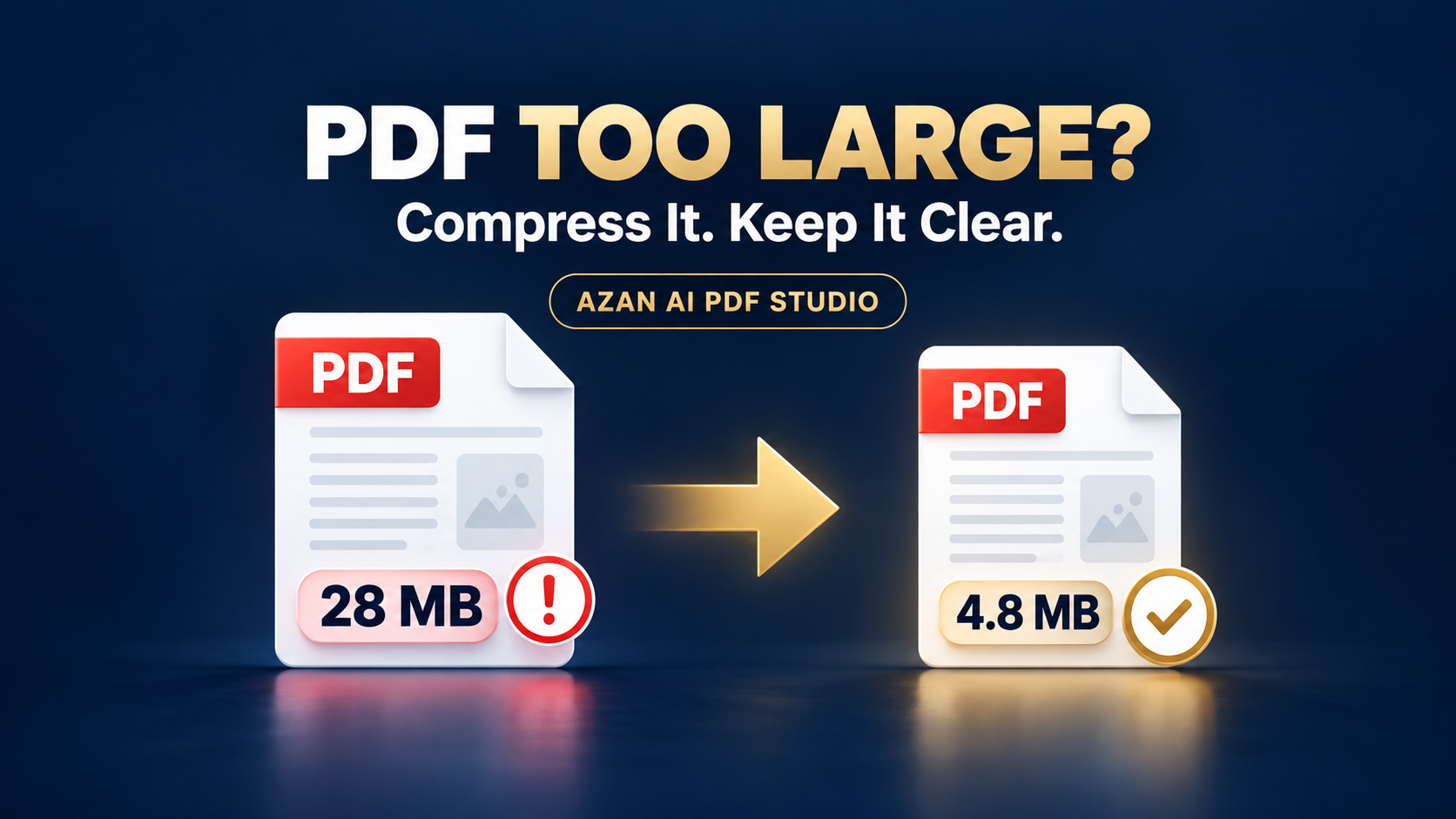
Her email rejected the 28 MB attachment. The client’s upload portal allowed a much smaller file, and the submission deadline was approaching.
Aisha considered deleting images and rebuilding the entire proposal. Instead, she searched for a way to compress the PDF without making the text blurry or the photographs unusable.
That small problem is familiar to office workers, students, freelancers, job applicants and business owners around the world.
Aisha is a fictional character representing a common document-sharing problem.
Why Do PDF Files Become So Large?
A PDF may contain much more than visible text.
Its file size can increase because of:
- High-resolution photographs
- Scanned pages
- Embedded fonts
- Repeated graphics
- Unused document metadata
- Complex design elements
- Inefficiently stored PDF objects
- Pages exported directly from design software
A beautiful document may look simple on screen while containing a large amount of hidden data.
💡 The objective is not to create the smallest possible file. It is to create the smallest useful file.
Heavy compression may save space, but it can also reduce image clarity. Light compression may preserve quality but fail to meet the upload limit.
The right choice depends on how the PDF will be used.
Which Compression Level Should You Choose?
| Compression level | Best for | Main consideration |
|---|---|---|
| Low | Contracts, forms and text-heavy files | Preserves broad compatibility with lighter optimization |
| Medium | Reports, proposals and everyday sharing | A practical balance between size and quality |
| High | Large files facing strict upload limits | Review images and small text carefully afterward |
For most business documents, Medium compression is the sensible starting point.
If the file is still too large, try High compression and inspect the result before sending it.
Aisha’s Five-Minute PDF Workflow
Aisha opened the Azan AI Compress PDF tool and followed a simple process.
1. Keep the original file
She saved an untouched copy before making any changes.
This matters because compression creates a new working version. The original should remain available in case the quality is reduced too much.
2. Upload the PDF
The Azan AI tool accepts one PDF of up to 50 MB.
3. Choose a compression level
Aisha selected Medium first because her proposal contained both text and product photographs.
4. Compress and download
After processing, she compared the original and optimized file sizes.
5. Review the complete document
She opened the compressed file and checked:
- The first and last pages
- Product photographs
- Small text
- Tables and figures
- Signatures
- Page order
- Clickable links
- Company branding
The document remained clear, and its reduced size was suitable for submission.
She sent it before the deadline.
The PDF Compression Safety Check
Do not judge a compressed PDF by file size alone.
Before sending or uploading it, check these areas:
🔤 Text
Zoom in and confirm that small text, footnotes and table contents remain readable.
🖼️ Images
Look for excessive blur, color changes, pixelation or missing graphics.
✍️ Signatures
Confirm that handwritten, scanned or digital signatures are still visible.
📄 Pages
Check the total page count and make sure no page is blank, cropped or missing.
🔗 Links
Test important website links, email addresses and navigation buttons.
📱 Mobile view
Open the file on a phone if the recipient is likely to read it on a mobile device.
🟡 Important: Always review important legal, financial, academic or client documents after compression. Never assume that a successful download means every detail is correct.
When Compression May Not Reduce the File Much
Not every PDF can be dramatically reduced.
A file may remain large when:
- Its images are already compressed
- It contains many scanned pages
- Every page is effectively a high-resolution photograph
- It uses complex embedded graphics
- It has already been optimized by another application
In these situations, forcing stronger compression can damage readability without delivering a major size reduction.
A better approach may be to:
- Rescan pages at a practical resolution
- Remove unnecessary pages
- Split the document
- Convert oversized source images before rebuilding the PDF
- Share the document using secure cloud storage when permitted
More Useful PDF Workflows
Compression is often only one step in a larger document task.
Combine separate documents
If your proposal, identification pages and attachments are stored separately, use Merge PDF to organize them into one file before compression.
Convert a PDF into editable Word content
If you must correct text or update details first, use PDF to Word, review the converted document and then export the final version back to PDF.
Turn photographs into one document
If you have receipts, certificates or scanned pages saved as images, arrange them with Image to PDF.
Protect sensitive documents
When appropriate, add password protection with Protect PDF. Remember that the recipient will need the password, which should be shared through a separate secure channel.
Make scanned documents searchable
If a PDF contains image-only scans, OCR PDF can create a searchable version while preserving the visible page images.
A Simple Document Workflow
Prepare → Organize → Review → Compress → Protect if needed → Test → Share
Following this order prevents a common mistake: compressing a document and then repeatedly editing, exporting and compressing it again.
Repeated processing may reduce quality unnecessarily.
Frequently Asked Questions
How can I compress a PDF online?
Open the Azan AI Compress PDF tool, upload your document, select a compression level and download the optimized version.
Can I compress a PDF without losing quality?
Some optimization can reduce file size without an obvious visual difference, but no method can guarantee zero quality change for every document. Always compare the output with the original.
Which compression level should I use?
Start with Medium for ordinary reports, proposals and mixed-content documents. Use Low when quality preservation is the priority and High only when you need a smaller result and can carefully review it.
Why is my compressed PDF still large?
The PDF may contain many high-resolution or already-compressed images. Structural optimization alone may have a limited effect on image-heavy documents.
Can I compress a password-protected PDF?
Encrypted or password-protected files may fail to process. If you are authorized to do so, unlock the PDF before compression and protect the final document again afterward.
Should I delete the original PDF?
No. Keep the original until the compressed version has been checked, delivered and accepted.
The Lesson From Aisha’s Deadline
Aisha did not need to redesign her proposal or remove the pages that made it useful.
She needed a controlled workflow:
- Preserve the original
- Choose an appropriate compression level
- Compare the file size
- Inspect the final document
- Send only after verification
The best PDF is not necessarily the smallest one.
It is the file that reaches its destination, opens correctly and remains clear enough to do its job.
Azan AI community
Join the Conversation
Was this guide useful?
Comments
Have a question or an idea to add? Share it with the Azan AI community.
Loading comments…
Reference: Blog #29 — quote this number if you contact us about this article