 Guides
How QR Codes Can Improve the Customer Experience
By Muhammad Nadeem · Blog #12
Updated
📖 5 min read · 996 words
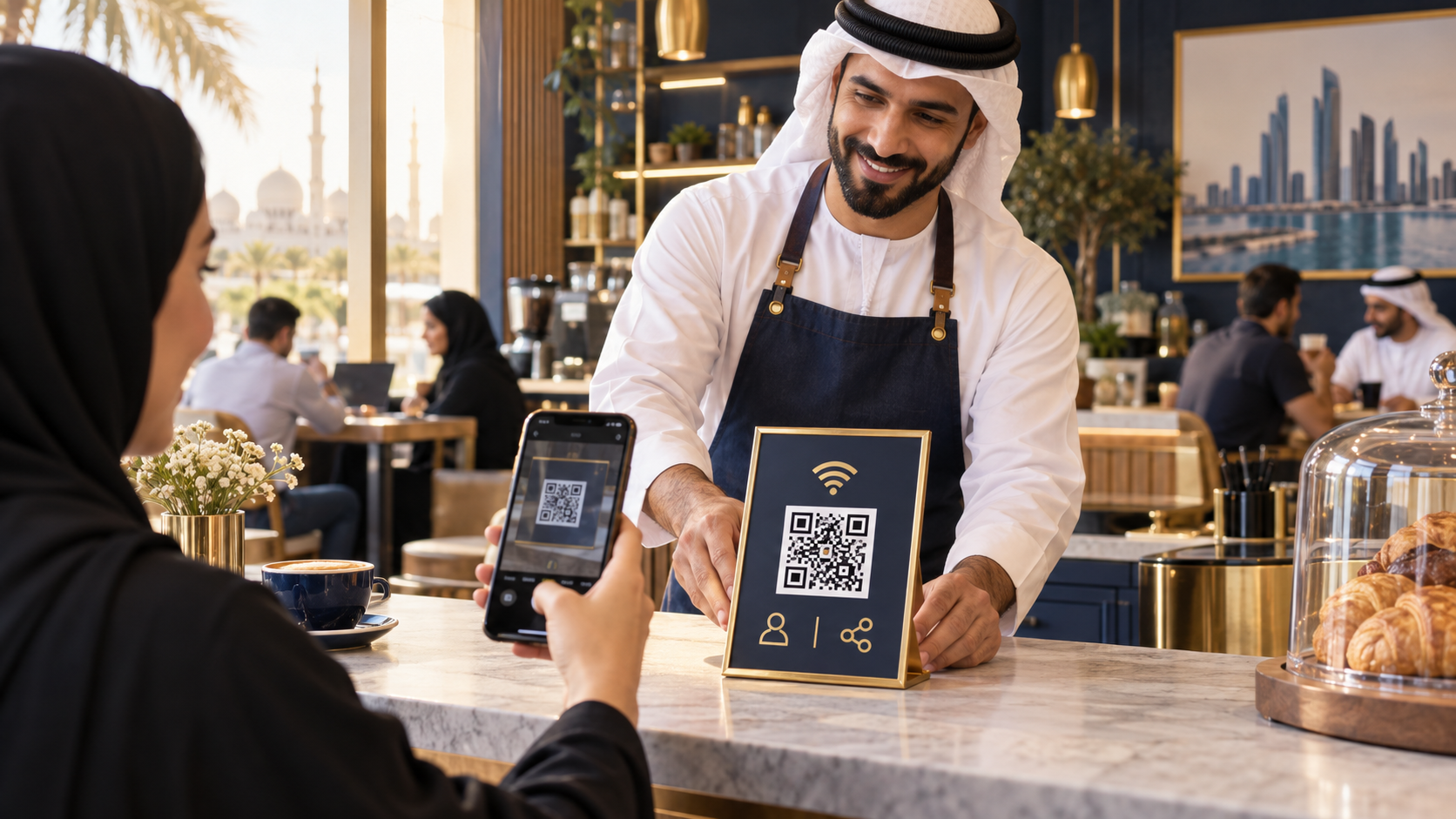
Every morning, the team at Kareem’s café answered the same questions:
“What is the WiFi password?”
“Are you on Instagram?”
“Can I have the manager’s contact details?”
None of these questions was difficult—but each interruption slowed down the counter, especially during busy hours.
Kareem already had the information customers needed. The problem was that people could not access it quickly.
His solution was not another employee, a mobile app or an expensive ordering system. It was three carefully placed QR codes.
Kareem is a fictional character representing a common small-business situation.
Three small problems, three useful QR codes
| Customer need | QR solution | What happens after scanning |
|---|---|---|
| 📶 Join the guest network | WiFi QR | Connection details open without manual typing |
| 👤 Save business details | Contact QR | Phone, email and website can be saved |
| 📱 Find social channels | Social Media QR | Customers see multiple profiles on one page |
💡 The main idea
A useful QR code removes a small obstacle. A decorative QR code with no clear purpose only creates another thing for customers to ignore.
1. Stop repeating the WiFi password
The café’s network password contained capital letters, numbers and symbols. Customers regularly typed it incorrectly, while staff repeated it several times every day.
Kareem opened the Azan AI WiFi QR Generator and entered:
- The network name
- The guest-network password
- The encryption type
- Whether the network was hidden
He selected the café’s navy and gold colors, downloaded the QR code and placed it near the counter.
Customers could now scan the code instead of manually entering a long password.
📶 Create a WiFi QR Code →
🔐 Security tip
Use a separate guest network rather than sharing the password for a network containing business computers, printers or internal devices.
Device behaviour can vary, so always test the QR code using both Android and iPhone devices before printing it.
2. Turn a business card into a scan-to-save contact
Printed business cards are useful, but customers can lose them before saving the information.
Kareem used the Azan AI Contact QR Generator to include:
- Name
- Phone number
- Email address
- Company name
- Job title
- Website
- Business address
He added the QR code to his business card and quotation documents. When someone scanned it, their phone could offer a quick way to save the contact details.
Where a Contact QR can work
- Business cards
- Reception desks
- Proposals and quotations
- Exhibition badges
- Delivery vehicles
- Email signatures
- Printed brochures
🟡 Privacy reminder
Only include contact information you are comfortable making public. Avoid adding a private home address or personal number to widely distributed materials.
👤 Create a Contact QR Code →
3. Give customers one doorway to every social channel
The café used Instagram for new drinks, Facebook for announcements, YouTube for short recipes and WhatsApp for enquiries.
Printing four long URLs would have looked untidy. Linking to only one platform would have hidden the others.
The Azan AI Social Media QR Generator allowed Kareem to create one mobile-friendly page containing his selected social and contact links.
He placed the QR code on:
- Table cards
- Takeaway packaging
- Receipts
- Promotional flyers
- Event posters
Customers could choose the channel they preferred instead of being forced onto one platform.
📱 Create a Social Media QR →
The S.C.A.N. test before printing
A QR code can look attractive and still fail in real use. Kareem tested every design with this four-point check:
S — Specific purpose
Tell people what will happen after they scan.
Weak: “Scan here”
Better: “Scan to join guest WiFi”
C — Contrast
Keep the QR pattern darker than its background. Avoid placing it over a busy photograph or a low-contrast color.
A — Area
Leave clear space around the code. Do not crowd it with text, borders or decorative elements.
N — Navigate and verify
Scan the final code from different phones. Confirm that the correct network, profile or contact information opens.
✅ Important
Print the actual QR file downloaded from Azan AI. The QR pattern visible in the cover image of this article is decorative artwork and should not be used as a functional code.
Static information can become outdated
Before ordering hundreds of cards or signs, ask one question:
How often will this information change?
| Information | Likely change rate | Better approach |
|---|---|---|
| Guest WiFi password | Occasionally | Reprint the QR after changing it |
| Contact details | Occasionally | Verify every field before printing |
| Website URL | Low | A standard URL QR works well |
| Social profile collection | Medium | Use a hosted social page |
| Temporary campaign | High | Print only for that campaign |
A QR code does not correct an expired link, incorrect telephone number or changed WiFi password by itself. The destination and encoded information remain the business owner’s responsibility.
What changed inside the café?
Kareem’s team still welcomed customers personally. The QR codes did not replace good service—they removed repetitive friction.
Customers could:
- Join WiFi without typing a password
- Save business details without copying them
- Find social profiles without searching
- Take action even when the counter was busy
The café became easier to use without becoming less human.
Your practical action for today
Walk through your customer journey and write down the three questions people ask most often.
If one of the answers is a link, contact, location, document, social profile or WiFi login, a QR code may turn that repeated question into a one-scan action.
💡 Start with one useful code
Do not cover your business with QR codes. Choose one genuine customer problem, create one code, label it clearly and test it before printing.
🚀 Explore Azan AI QR Studio →
One small scan can save a customer several unnecessary steps—and save your team from answering the s
Azan AI community
Join the Conversation
Was this guide useful?
Comments
Have a question or an idea to add? Share it with the Azan AI community.
Loading comments…
Reference: Blog #12 — quote this number if you contact us about this article