 E-commerce
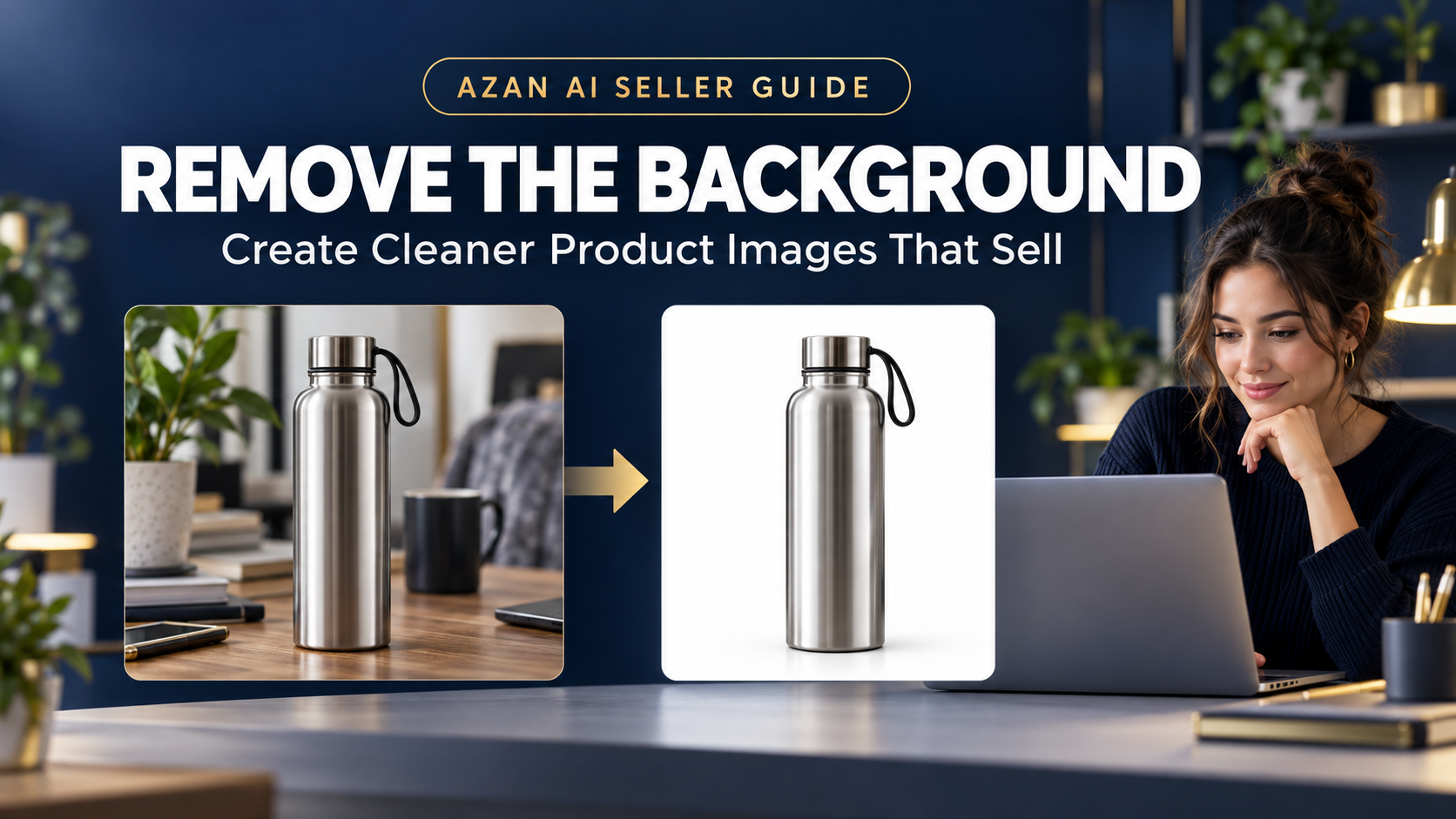
How to Remove Backgrounds from Product Images: A Complete Seller Guide
By Muhammad Nadeem · Blog #34
📖 11 min read · 2,362 words
A customer cannot touch, hold or inspect your product when shopping online. The product image must do much of that work instead.
A clear, professional image helps customers understand what they are buying. A distracting background, poor crop or untidy setting can make even a good product look unreliable.
Fortunately, you do not always need a professional studio or expensive editing software. With a background-removal tool and a few careful checks, you can transform an ordinary photograph into a cleaner image suitable for an online store, marketplace listing or social media campaign.
This guide explains how to remove backgrounds from product images, prepare a clean white-background photo and avoid the editing mistakes that can reduce customer confidence.
Why Product Image Backgrounds Matter
Online shoppers make quick decisions. Before reading the full description, many customers look at the product image, price, rating and delivery information.
The background of a product photo affects how clearly the item can be seen. A busy room, visible hands, unrelated objects, strong shadows or inconsistent colours can distract attention from the product.
A clean background can help you:
- Make the product easier to examine
- Create a consistent storefront
- Improve the appearance of search results
- Prepare images for different marketplaces
- Reuse the product cutout in advertisements
- Create lifestyle images without photographing the item again
- Give a small store a more professional appearance
Background removal is not about making a product look different from reality. It is about presenting the real product clearly.
What Is Background Removal?
Background removal is the process of separating the main subject from everything behind it.
Once the background has been removed, the product can be placed on:
- A pure-white background
- A light neutral background
- A transparent canvas
- A branded promotional design
- A realistic lifestyle scene
- A social media advertisement
Modern AI background-removal tools can identify the main object automatically. This makes the process much faster than tracing every edge manually.
However, automatic removal is not always perfect. Fine edges, transparent materials, reflective surfaces and products that match the background may still require careful inspection.
White Background or Transparent Background?
These formats serve different purposes.
White background
A white background is commonly used for main marketplace images because it keeps the product clear and consistent.
It is usually the better choice for:
- Main marketplace listing images
- Product catalogues
- Comparison pages
- Store collection pages
- Google product feeds
- Clean Shopify product pages
Amazon’s official product-image guidance requires a pure-white background for applicable main product images, using RGB values of 255, 255, 255.
Always check the latest rules for the marketplace and category where you plan to sell.
Transparent background
A transparent background removes everything around the product without replacing it with a colour. It is generally saved as a PNG file.
It is useful when you want to place the same product on:
- Different coloured backgrounds
- Promotional banners
- Social media posts
- Website graphics
- Seasonal designs
- Comparison charts
- Lifestyle scenes
Keep a transparent master copy whenever possible. You can then create several versions without removing the background again.
How to Remove a Background from a Product Image
Follow this practical workflow for better results.
Step 1: Start with the best available photograph
Background removal cannot fully repair a badly photographed product.
Before editing, choose an image with:
- Sharp focus
- Good lighting
- A clearly visible product
- Minimal motion blur
- Limited glare
- Enough space around the item
- Clear separation between the product and background
Whenever possible, photograph the product in front of a plain wall, sheet or board that contrasts with its colour.
For example, avoid photographing a white bottle against a white wall. The edges may be difficult for an automatic tool to identify.
Step 2: Upload the original image
Use the highest-quality original photograph available.
Avoid taking a screenshot of an image and then uploading the screenshot. Screenshots may reduce quality, introduce unwanted borders and remove useful image information.
You can explore Azan AI’s practical image and seller tools here:
https://www.azanai.cloud/tools
Step 3: Remove the background
Allow the tool to identify the main product and separate it from the original scene.
The first result may look complete at normal size, but do not download it immediately. Zoom in and inspect the product carefully.
Step 4: Check difficult edges
Pay special attention to:
- Hair or fur
- Fabric fibres
- Bottle handles
- Jewellery chains
- Transparent plastic
- Glass
- Reflective metal
- Thin cables
- Plant leaves
- Product shadows
- Small gaps between components
Look for pieces of the original background that remain attached to the product. Also check whether any real part of the product has been removed.
Step 5: Choose the correct new background
For a main listing image, use the background required by the marketplace. This is often pure white, but rules can vary by platform, country and product category.
For additional images, consider:
- A close-up of an important feature
- A side or rear view
- A size-reference image
- Packaging contents
- A lifestyle photograph
- A product-in-use scene
- A simple feature graphic where permitted
The main image should identify the product clearly. Additional images can explain benefits, scale, use and context.
Step 6: Position the product correctly
The product should be centred and large enough to examine without touching or disappearing beyond the edges.
Avoid leaving so much empty space that the item looks tiny. Also avoid cropping off handles, lids, accessories or other parts included in the sale.
Google Merchant Center recommends using a crisp hero shot of the complete product on a clean white or light-neutral background. It recommends aiming for images around 1500 × 1500 pixels or higher for strong performance across different formats.
Requirements can change, so verify the latest platform guidance before uploading a large catalogue.
Step 7: Preserve natural proportions
Do not stretch a tall product to make it wider or compress a wide product to fit a square canvas.
Instead:
- Resize the entire product proportionally.
- Place it inside the required canvas.
- Add appropriate space around it.
- Confirm that the product still looks natural.
Distorted products can mislead shoppers and make the listing appear unprofessional.
Step 8: Export the correct file
Use:
- JPEG for standard white-background product photographs
- PNG when transparency is required
- WebP when supported and you want efficient website delivery
Keep an editable or transparent master file separately. Export marketplace-specific copies from that master.
Recommended Product Image Workflow
A reliable seller workflow should separate the original file from the edited versions.
Use this folder structure:
- Original product photos
- Transparent cutouts
- White-background images
- Lifestyle images
- Marketplace-ready exports
- Social media versions
Use descriptive filenames such as:
stainless-steel-water-bottle-black-front.jpg
Avoid filenames such as:
IMG_4827.jpg
Descriptive filenames make large catalogues easier to manage. They may also give search engines limited contextual information about an image.
Product Image Checklist
Before publishing, confirm that:
☐ The image shows the correct product ☐ The product colour is accurate ☐ The product is sharp and easy to see ☐ The background meets platform requirements ☐ No original-background fragments remain ☐ No part of the product has been accidentally erased ☐ The item has not been stretched or distorted ☐ The complete product is visible ☐ The product is centred appropriately ☐ The image has sufficient resolution ☐ There are no unauthorised logos or watermarks ☐ The image does not contain prohibited promotional text ☐ The filename is descriptive ☐ The alt text describes the image naturally ☐ The final image has been checked on mobile
Common Background-Removal Mistakes
1. Removing the natural product shadow
A soft, realistic shadow can help an item look grounded. Removing every shadow may make the product appear to float.
For marketplace images, keep any permitted shadow subtle and natural. Do not create a dramatic artificial shadow that changes the product’s appearance.
2. Leaving a coloured outline
A green, grey or blue halo can remain around the product after removal.
This is especially noticeable when the original background contrasts strongly with the new one. Inspect the edges at high zoom before exporting.
3. Cutting off transparent areas
Glass, clear plastic and translucent packaging are challenging because the background may be visible through them.
Check that transparent areas still look realistic after the background is replaced.
4. Over-smoothing the edges
Excessive smoothing can remove fabric texture, fur, stitching or fine product details.
A clean edge should still preserve the real shape and material of the item.
5. Using a low-resolution source
Removing the background does not automatically create real product detail that was missing from the original photograph.
AI enhancement may improve presentation, but it should not invent labels, textures, components or features that the actual product does not have.
6. Adding too much promotional text
Text such as “Best Seller,” “Free Shipping,” “50% Off” or “Buy Now” may violate requirements for main product images on shopping platforms.
Google Merchant Center prohibits promotional overlays and requires an unobstructed view of the product for product-feed images.
Keep promotional information in the listing, advertisement or approved secondary graphics—not on a main image when the platform prohibits it.
7. Making the product look different
Do not use editing to change:
- Product colour
- Material
- Shape
- Included quantity
- Packaging
- Logo
- Accessories
- Size or proportion
The edited image must represent what the customer will receive.
How to Photograph Products for Easier Background Removal
You can improve the final result before editing begins.
Use a contrasting background
Choose a background that is noticeably different from the product.
A dark product is easier to separate from a light background. A light product may be easier to isolate from a medium-grey or darker background.
Use soft, even lighting
Harsh lighting creates deep shadows and bright reflections.
Try photographing near a large window with indirect daylight. A thin white curtain can soften direct sunlight.
You can also use two affordable lights positioned on opposite sides of the product.
Clean the camera lens
A fingerprint on a phone camera lens can create haze and reduce sharpness. Wipe the lens with a clean microfibre cloth before taking product photographs.
Stabilize the camera
Use a tripod, phone stand or stable surface. This reduces blur and helps maintain consistent angles across a catalogue.
Photograph multiple angles
Do not depend on one photograph.
Capture:
- Front view
- Back view
- Side views
- Top view
- Important details
- Packaging
- Accessories
- Product in use
These images can help customers understand the item and reduce uncertainty.
Should You Use AI-Generated Product Backgrounds?
AI-generated backgrounds can be useful for advertisements, social media and supporting lifestyle images. They can show a product in a relevant setting without arranging a complete photoshoot.
However, they must be used responsibly.
An AI-generated scene should not:
- Change the real product
- Add accessories that are not included
- Suggest an inaccurate product size
- Show an unsafe or impossible use
- Cover important product details
- Create a false performance claim
- Use protected third-party branding without permission
For example, placing a real water bottle on a clean gym bench may provide helpful context. Changing the bottle’s lid, logo, capacity or included accessories would misrepresent the item.
Use the real product cutout as the fixed subject and treat the generated environment as supporting context.
Main Images and Lifestyle Images Serve Different Purposes
A strong product listing usually needs both.
Main image
The main image should answer:
“What exactly am I buying?”
It should be simple, accurate and easy to inspect.
Lifestyle image
A lifestyle image should answer:
“How will this product fit into my life?”
It can show context, scale, use and emotional appeal.
A main image earns clarity. A lifestyle image builds desire. Neither should mislead the customer.
How Product Images Support SEO
Product images can also help customers discover your pages through search and visual-search experiences.
Google recommends:
- Relevant, high-quality images
- Descriptive filenames
- Useful alt text
- Images placed near related content
- Crawlable image URLs
- Structured product data where appropriate
Alt text should describe what is genuinely visible.
Good alt text:
Black stainless-steel insulated water bottle with screw-top lid on a white background
Weak alt text:
Best cheap bottle water bottle online buy bottle UAE shop bottle
Write for accessibility and clarity. Avoid keyword stuffing.
Frequently Asked Questions
Can I remove a product-image background for free?
Many tools offer free background removal with limitations on resolution, file size or the number of downloads. Check the export quality before using the result for a professional listing.
What background is best for a product image?
For many main marketplace images, a clean white background is the safest choice. Additional images can use light neutral or lifestyle backgrounds when the platform permits them.
Should product images be square?
Square images are widely used for product listings because they display consistently across search results and mobile layouts. However, you should check the required dimensions and aspect ratio for each marketplace.
What file format keeps the background transparent?
PNG is the most commonly used format for transparent product images.
Can AI background removal handle glass products?
It can, but glass and transparent plastic require careful inspection. The tool may remove reflections or transparent sections incorrectly.
Can I use the same image on Amazon, Shopify and social media?
You can reuse the same original product photograph, but create separate exports for each platform. A marketplace main image, Shopify product image and Instagram advertisement may require different backgrounds, crops and dimensions.
Is it acceptable to generate a lifestyle background with AI?
Yes, when the platform permits it and the result represents the real product honestly. Do not alter the product or imply features, accessories or results that are not real.
How large should my product image be?
Requirements vary. Google currently recommends aiming for approximately 1500 × 1500 pixels or higher for strong performance across its shopping formats. Always verify the latest requirements of the platform and category before uploading.
Final Thoughts
Professional product photography begins with clarity.
You do not need to make an ordinary product look unrealistic. You need to show the real item cleanly, accurately and consistently.
Start with a sharp original photograph. Remove the background carefully. Inspect the edges. Preserve the correct shape and colour. Export the image for the platform where it will be used.
Most importantly, keep the customer’s expectations in mind. A polished product image should help shoppers understand the item—not create a false impression of it.
Ready to prepare cleaner product images?
Explore Azan AI’s practical seller and image tools:
Azan AI community
Join the Conversation
Was this guide useful?
Comments
Have a question or an idea to add? Share it with the Azan AI community.
Loading comments…
Reference: Blog #34 — quote this number if you contact us about this article